Monday, June 20, 2016

Just because they're sharing, it doesn't mean they're reading

If you're visiting this article before or after sharing it on a social channel, then may I offer you a warm welcome to an increasingly exclusive club. For you are just one of the 41% of people who not only shared the article but actually read it too. 


In news that will embolden some, depress others and possibly surprise nobody, a new study by computer scientists at Columbia University and the French National Institute reveals that 59% of links shared on social media have never actually been clicked.


As the Washington Post put it this weekend in one of their best headlines ever – 6 in 10 of you will share this link without reading it, a new, depressing study says.


Back in 2014, it was estimated that social media referral was responsible for 30% of total visits to websites. However according to the research published by HAL (yes, a group of computer scientists publish their research under the name HAL, what of it? Why are you terrified?) and using a dataset amounting to 2.8 million shares, 75 billion potential views and 9.6 million actual clicks to 59,088 unique resources, most people just retweet news without ever reading it.


According to the study's co-author, Arnaud Legout, “This is typical of modern information consumption. People form an opinion based on a summary, or a summary of summaries, without making the effort to go deeper.”


These blind retweeters are also, worryingly, shaping the news agenda, by sharing what is already 'viral' and adding to social platform's 'trend-watching algorithms' without first stopping and reading what they're actually doing.


Or are our favourite news sources so trustworthy that we can put blind faith in anything they publish? To be honest, Facebook will probably just ignore much of the above anyway.


For proof of this, you need not look any further than May 26, when a certain social media manager (*cough*) tweeted the following headline but accidentally forgot to include the link to the article.


And yet the tweet enjoyed 25 retweets and 28 likes. That's one of our most popular tweets, and yet not one person noticed the lack of link. Maybe that's the key for us… black and white photo + non sequitur headline – link = engagement gold.


A peek behind the wizard's curtain


To add our own two pence (or cents depending on where you are right now) to this debate, let's open up our own analytics and let you see what influence SEW's social channel on traffic to the site.


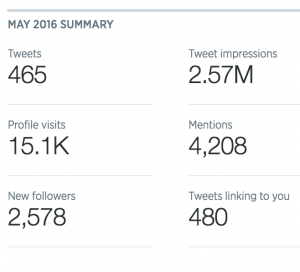
Here are our own Twitter analytics for May 2016…


twitter analytics May


A 'robust' 2.5 million impressions from only 465 tweets is pretty good. But what about actual click-through rate (CTR)?


Let's take a look at our top tweet in May…


twitter analytics top tweet


The impressions gained from its 29 retweets resulted in 18,202 impressions and ultimately 40 link clicks. This means it had a CTR of 0.2% which is about our average. Sadly, this is a little lower than the industry average for a following of our size.


According to Hubspot the average Twitter CTR is 1.64%, and the more followers you have, the fewer clicks you'll receive on your tweets.


  • Users with 50 – 1,000 followers had a 6.16% CTR.

  • Users with 1,000 – 5,000 followers had a 1.45% CTR.

  • Users with 5,000 – 10,000 followers had a 0.55% CTR.

  • Users with 10,000+ followers had a 0.45% CTR.


And according to this Quora forum on Twitter CTR, links shared by Mashable's Twitter account, despite its 7+ million followers, results in a CTR of just 0.11%.


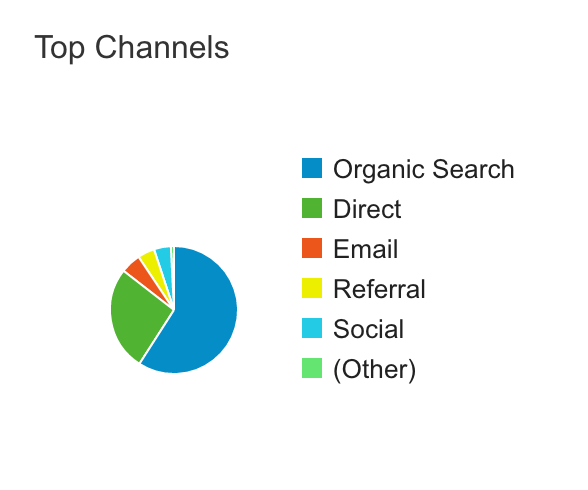
If that's not enough to get you completely down heartened, let's open up Google Analytics and see how much traffic social drove to SEW in May.


social analytics


Over the course of 31 days in May, only 4% of our total traffic came from social. The majority of our traffic comes from organic search (as you would hope and expect from a site with 'search engine' in the title), with direct, email and referral all coming in above social.


To break it down further by social channel, it's 47% from Twitter, 24% from Facebook, 11% from LinkedIn and, uh, 0.3% from Pinterest.


However if we look at Twitter, the most popular social channel we operate, it drove more than 16,000 sessions to the site, 40% of which are from unique users.


So despite a low CTR, these are fairly considerable numbers, and certainly the research presented by HAL should not be used as an excuse to 'switch off' your social activity. In fact if anything, this is a good excuse for us to take a good look at our Twitter strategy and see how we can improve things.


Remembering to add links to tweets would be a good start.


Finally, you should also be aware that, if your boss is asking for ways to measure your content's engagement, a simple 'number of retweets' isn't good enough.


Update: I just tweeted this article. It IMMEDIATELY got 3 retweets within 30 seconds.

Thursday, June 16, 2016

Why your audiences are so important

No, it's not a misspelling or a typo – I did say audiences, plural!


Why am I putting such an emphasis on that plural? Because most people fail too! People tell you to write for your audience; locate your audience; conduct keyword research for your target audience; create quality content to please your audience.


They don't tell you that you have more than one audience!


And it's true – almost every single one of you has more than one audience. I'm not talking about sub-groups or divisions of audience – but multiple audiences. These different audiences have completely different behaviours, intentions and reactions to your content.


Notice all those lovely informative posts that talk about your sales or conversion funnel? You realise that they are completely wrong – well, some of the time they are. That's because of different audiences.


So what are the different audiences?


Well, that's a secret. Oh, okay, I'll tell you :D


  • Consumers

  • Peers


That's it – that's your secret?


Well, yes. But there's far more to it than that (else I wouldn't be banging on about it). These two groups have completely different sets of wants and needs. They have different expectations of you, your company and your content. They should influence your decisions, your targeting and your content creation in different ways.


Eaton's_War_Bonds_Rally_1943_Audience


Consumers


This is the main audience people refer to. Typically, we define consumer audiences by several methods:


  • Specific – an actual item/service, such as they read The Times, or use a Dyson vacuum.

  • General – a class/type of product or service, such as they read broadsheets or use upright vacuums.

  • Classes – earnings, gender, ages, location etc., such as >30K, white collar, B1, 25-30, males in Las Vegas.


But there are other methods, or more accurately, other labels and classes that may be more useful;


  • Repeat consumer

  • Previous consumer

  • Current consumer

  • Potential consumer


Now, if you've been paying any attention to those funnel pieces, those should look vaguely familiar. You should have also noted that many of the funnel pieces fail to cover repeat consumers, despite them being highly important to your business.


Each of those groups has different needs, and would require different content. Just as important, they will react differently to your content and your company.


In most industries, it's easier to sell to previous and current consumers. It's also easier to get recommendations (reviews, ratings, testimonials) from repeat, current and previous consumers (generally in that order). It's also easier to engage with those groups.


The content needs of each group are different. Those funnel pieces you've been reading generally cover this – each stage of the funnel covers different types of content, such as:


  • Raising/increasing awareness (branded marketing/advertising)

  • General information (types of products/services, benefits/features, USP/VP)

  • Specific/comparative information (individual products, services, guides etc.)

  • After-sales/user information (guides, complementary material etc.)


Consider offers. You can have introductory offers – those target potential consumers and help raise awareness and interest. Or you can run with rewards – those target current, previous, repeat consumers.


Yes, yes, most of this is common sense and well known, but how often are you actually using this information when looking at your objectives and content?


Think about it – one of the main reasons you produce content is to improve your SEO – to get links.


Which of those groups are going to give you links? How many links are you likely to get from them? What sort of value are those links going to be? Right – and that's where understanding that you have the other audience comes in!


Peers


I use the term 'peers' instead of 'industry' as it's broader, and gives us a little more wiggle room and flexibility. Peers include not only those in your industry, but in sibling and related industries. It also covers enthusiasts and hobbyists (I would have defined that as a separate group, but that would have made it much messier :D). Depending on your goals, you could also include groups like investors, shareholders or the media.


Categorising peers is every bit as important as defining consumers. Each group and type of peer has different goals and different reactions. That means you need different content and can use them for your own objectives.


One way to break peers down is by level:


  • Layperson

  • Amateur

  • Professional

  • Expert


Now, it's important to note that this type of grouping generates a pyramid. That pyramid not only shows the general difference in quantity of each group, but the flow of influence and the increase in difficulty to obtain a desired reaction.


DCF 1.0

DCF 1.0


Another way of looking at peers is by role. Far too often people focus on their niche, their industry, or what they provide. They often forget that they do different things, such as using software, run accounts or are themselves consumers (as people and as businesses). This opens up more content topics and more marketing potential. Look at some examples:


  • Executive – those that in positions to make decisions and hold a large amount of influence.

  • Technician – those that utilise hardware/software to perform tasks that require knowledge and/or skill.

  • Sales – those that have direct contact with consumers, either inbound or outbound.

  • Services – those that perform company functions, such as accounts.

  • Care – those that run the contact points, after sales and complaints.

  • Labour – those that perform manual labour or use tools and equipment that requires only moderate knowledge or skill


There are many other way labels or tiers you could use, but that should give you the gist of things.


Looking at the peer audience this way shows you that you could generate content of a completely different nature, such as cheat-sheets for software, macros for spreadsheets, templates for word processors, sources of alternative software, operating tips, safety advice etc.


What's important here is to understand the differences between consumers and peers. The chances of 'converting' a peer in the traditional sense are slim. Very few decorators are going to hire the decorator whose article they are reading. Few Advertisers will contract with another advertiser. Instead, peers serve an entirely different set of goals.


It's peers that will give you the greatest chance of links. Peers will provide authority. Depending on your industry, content and marketing, it's peers that will give you the most social shares.


Now, jumping back to the peer pyramid, let's look at the difficulty of obtaining a desired reaction. This is an important bit, and one that many never mention!


Getting links from thought leaders, influencers and experts is damned hard. But getting links from amateurs is easier. Getting links from laypeople is even easier. Chances are you won't get high value links, but you will get more links. These people are easier to please, easier to impress and are far more willing to promote your content and further your marketing efforts.


Peer consumers


For some of you, this group might not even exist. These are the people that are in your industry, or a related one – and may buy your products or pay for your services. That means this small and rare group may well serve most, if not all, of your objectives.


How nice would it be to not only make money off them, but also get them giving your reviews and sharing your content?


So, who has peer consumers? Well, those that sell products to do with their services (such as artists selling materials and mediums), and those with tools that pertain to the audiences services (such as templates for web designers or plugins for content management platforms).


As you can see, it's kind of a sweet spot, and I'm sure, without too much effort, you can think of several well-known examples in our own fields :D


How audience types can influence things


The above is a little general. The reason is that there is so much variance, based on your industry and objectives, or those of your clients. The idea of the piece is to help you realise the amount of influence that knowing your audiences should have on your content and marketing plans.


Remember, you should be defining goals and objectives, then creating content to achieve those goals and objectives.


The key part is what happens in-between those two things, your research, which should include researching and defining your audience and target terms. That would include understanding the types of queries they will make, and what the intention of those queries are.

We Interviewed 75 Top Social Media Marketers. Here's What They're Working On, Today

I consider myself a pretty lucky guy.


I have the amazing privilege of speaking with social media managers from a variety of brands and industries around the world on a daily basis. Listening and learning about the projects they're working on, their biggest challenges, and what their aspirations are on social media now and in the future has helped me tremendously along the way.


But then it dawned on me - I've never taken the time to write any of this incredible information down to share with other marketers!


Well, I'm happy to change that. We thought it'd be great to share all the awesome insight we're lucky to glean from the world's best social media marketers, starting with this simple (and fascinating, revealing, inspiring) question:


What is the biggest project you're working on?


We surveyed and spoke with more than 150 of the world's best social media managers and put together a selection of 75 answers here.


Much love to the authors of this Medium post for inspiring us to write this article!


line


Today's biggest social media projects


Huge thank yous to all the social media managers who responded to our survey. If you happen to spend time sharing to social for your business or brand, it'd be great to hear your thoughts in the comments here, too!


It was inspiring and motivating to see all the answers, from 150 marketers! (Many of the people I spoke with told me that they too wondered what other social media managers were up to.)


Below you'll find all their answers. I hope it might give you a bit of inspiration from what everyone is working on, and further down we're excited to share how we plan to put these learnings into action at Buffer.


The breakdown of social media projects


From a high level, here are some graphs that explain the types of projects that social media managers are working on at the moment. Keep reading to see each individual response after this section of charts.


More than 25% of social media managers said their #1 project was content creation.


Other themes included:


  • Increasing engagement

  • Growing an audience

  • Scheduling content

  • Event planning


top social media managers projects


While there was a lot of focus on content, very little of it seemed to be video content.


Only 6 out of 150 social media managers mentioned video among their biggest projects.


top social media managers projects


On the flip side, one big theme of the content, planning, and strategic projects was social media ads.


A whopping 33 out of 150 social media managers mentioned “paid advertising” in their biggest projects for the week.


top social media managers projects


line-section


What social media managers are working on right now (the complete list)


Grant Gurewitz, Zillow – Developing a report of summer housing trends for real estate professionals.


Dinnie Lim, We Are Social – Sending out a summary of current trends and innovative uses of social media to my client.


Paul Lindemann, Montage Marketing – Promoting client's news and activities at a big industry trade show.


Lindsay Scarpello, Omaha Steaks – Creating social media strategy / editorial calendar for my new position.


Chelsea Hunersen, HubSpot – Creating a great content plan for the rest of June (a.k.a. the end of Q2).


We're excited to be working with Chelsea and the Hubspot team on a Social Media Master Class to explore we're they're thinking about social media marketing in 2016, 2017, and beyond. Looking to stay ahead of the curve with your social media strategy? Click here to reserve your seat.


Keeping tabs on the breaking social news for our weekly Friday morning show. (1)


Sam Rye, Social Labs – Testing interest in a new online course we may/may not launch soon!


Kaitlin Gallucci, Historic Huguenot Street – Launching our spring fundraising campaign.


Jane Stecyk, IFTTT – Posting content that contributes to our larger goals as an organization: acquisition and engagement.


Jane and the IFTTT team are working on a bunch of great things in social media including new brand partnerships as well as ways that social media managers can use automation to increase their productivity.


3


Stephen Banham, Richmond Events – Handing over documents and transitioning as I leave the company.


Samantha Allen, GoTriangle – Quality and informative interactions on Twitter.


Petra Diener, 3 Across The Sea – Getting a new account rolling and communicating.


Erik Fisher, Social Media Examiner – Keeping tabs on the breaking social news for our weekly Friday morning show.


Erik and the Social Media Examiner team run a really neat Friday roundup with all the latest social media news. The roundup includes social network updates, new tools and apps, and a look ahead into where social media might be going (and how we marketers can stay ahead of the curve). 


Keeping tabs on the breaking social news for our weekly Friday morning show.


Ondro Mikus, Slovak Telekom – Social media campaign for Euro 2016


Rachelle Raven, Keller Williams – Working with potential buyers and sellers to identify new opportunities.


Marinella Di Mario, MDM Social Media & Copywriting – Working on the art of storytelling on social media.


Sophie Fryer, Tribal Group – Promoting our company conferences (both in July) and getting as many attendees as possible.


Kelly Culver, Fruitworks Coworking – Marketing a successful event and learning from other companies on how they've promoted events in the past.


Khadya Hale, Khadya's VA Solutions – Working on graphics for my clients so they have consistent branding across the board.


Tim How, Bell State Bank & Trust – Testing video posted natively to each channel (Facebook, Twitter) against using the YouTube link.


4


Iona Fresnoza, Groundswell Grassroots Economic Alternatives – Communication plan + social media calendar for June-July!


Jasmine Garland, Page 1 Solutions – Developing a social strategy for an overseas company launching their first U.S. business.


Klair Rafter, RafterMedia – Growing our twitter following on a daily, weekly, and monthly basis.


Dani Beach, Springbot – A/B testing Twitter Ads and finding ways to increase the number of customers that follow us.


Marie Geffroy, Manyatta – Driving traffic to our website from social media and other marketing channels.


Tres Kennedy, Kill Cliff – Creating new and awesome content for all of our social media channels.


Ashley Williams, Etna Interactive – I am preparing a 'how to use Snapchat for business' presentation for our staff. Our clients are quickly moving to the platform, so I want to make sure we are trained and ready to offer support.


5


Emily Triplett, The Make It Snappy Productivity Show – Interacting with our audience, increasing engagement and building connections with followers to increase mentions.


Hamish Anderson, Mesh Consulting – Developing a framework which articulates how people can best respond to comments and posts on their social accounts to ensure the best result.


Brandon Bautista, Michigan Virtual University – Reporting for last month's social media activity.


Maria Gester, Viva Media – Planning future content and posts for customers before the summer holidays.


Jordan Nottrodt, Drink When – Increasing interactions with a podcast influencers.


Jaana Nystrom, Gplussa – Like every week, keeping my 23 Buffer accounts' queues well filled with good content.


Jessica Valero-Gil, Adur & Worthing Councils – EVERYTHING! I am working on a new strategy for all social media channels across all departments


Amanda Perino, Hotel V – Developing engaging content streams across all social media channels.


Tracey Richardson, SMC Pneumatics UK Ltd – Deciding on the exact focus for each of our social media channels and how that changes day to day and week to week.


Gen Fuller, Creative Approach – Editing videos, bulk tweet uploads, updating the website portfolio in preparation for a campaign launch and finally, audit.


Becca Fieler, Thomson Reuters Checkpoint – Developing a social campaign about a social media product line


Aimee Luongo, Rand Internet Marketing – Optimizing advertising campaigns on social media and lowering our CPC.


Nikki Sunstrum, University of Michigan – The evaluation of social in relation to academic scholarship and university reputation.


6


Kayley Robsham, Check I'm Here – Writing engageable blog content and adding promoted tweets!


Felipe Quinzio, Tramify – Building our initial social media campaign.


Ryan Stephens, Edmonton Heritage Council – Target marketing for an event catering to a specific demographic.


Kelly Schuknecht, Outskirts Press – Creating a roadmap for the team of our PPC advertising on social media.


Chloe Sayers, Buffini & Company – Creating and running engaging user generated content campaigns (UGC).


Sarah Armstrong, Manicured Coding – Creating content that will enable small businesses to manage their own social media accounts using tools such as Buffer.


Kimberly Davis, The University of Arizona – Working on a social media competitive audit.


Monina Wagner, Content Marketing Institute – Crisis management/monitoring of major public-facing organization news


7


Halie Powell, Community Bible Church – Social media scheduling, of course!


Andy Fidel, Commetta – Launching three new Commetta social networks.


Erin Morris, WDM Architects – Honestly, just trying to keep up with social media scheduling and postings.


Laura Bauman, Fence Talk Digital – Creating comprehensive monthly reports for my 15 different clients.


Matt LaCasse, Inter-State Studio and Publishing – Developing a content calendar for the rest of the year.


Scott Caldwell, Skills Development Scotland – Developing our B2B social media marketing strategy.


Chelsea Wallace, Gen Y Shine – Creating a content plan – themes for each week of the month so I don't have to wonder about what to post when, where & why.


8


Jiyu Ong, Abroad Source – My biggest project is increasing Likes, Follows and Retweets across social across social media channels.


Amitabh Songara, PaintAds – Promoting our product across social and while also educating people about what our product is.


Cassandra Polzin, Leeward Business Advisors – Event Promotion Plan for an event all the way in July.


Kyle Murray, Aware Senior Care – Creating effective paid advertising campaigns to generate leads on social media.


Anamika Vasudevan, Einfach Digital – Social Media Campaigns for a Singapore based FinTech company.


Jade Phillips, CharityJob – Running, testing, and measuring new Facebook advertising campaigns.


Hemali Kakoo, Jornal de Negócios – I want to double engagement and reach.


Kate Tilton, Kate Tilton's Author Services, LLC – Trying a new schedule according to Buffer's suggestions and keeping up while out of town.


Joanne Brady, Self employed/sole trader – Getting the most out of time budget for each of my clients.


Lisa Kelley, Southern California Media Group – Creating a weekend Roundup of events happening in San Diego.


Vanessa Siniscalchi, Latinas Think Big – Driving traffic to all my client's websites.


Deandra Wilson, Texas Air Doctors – Working on more click throughs to the website from social media.


Malulu Angula, Leap Holdings Pty Ltd – Creating and executing a social media strategy for our new clothing brand.


Wilson Moy, Piktochart – Preparing a social media campaign for an exciting announcement about our product!


9


Margaux Maillet, Havas – Delivering effective LinkedIn advertisements.


Lisa Matthews, Bicycl Asia – Working on content creation.


Andy Wopshott, Elim Pentecostal – Increasing engagement on each one of our social media posts.


Justin Owens, CubeMotion LLC – Setting up a Mobcrush channel for our community.


Stefanie Cash, City of Orlando's District 2 – Summer Safety Tips Campaign


Kory Bowlin, Bluewolf, an IBM Company – Creating great content people engage with.


10


line-section


Takeaways: Projects that inspired us (and lessons we learned)


I found it super interesting that social media managers from around the world have many of the same projects in common. Creating awesome content, driving traffic to company websites from social media, and scheduling out plenty of content in advance were a few recurring themes throughout.


There were so many great projects here. These were just a few that caught our eye (and might lead to us working on something similar):


  • Preparing campaigns for product announcements

  • Creating a content / social calendar

  • Educating others on Snapchat

  • Testing native video

  • Optimizing paid ads to get a better cost-per-click


One interesting learning from this survey is that there weren't too many social media managers working on video production as one of their top projects. In a recent research study, we found video to be one of the biggest trends in social for gaining more engagement, and it seems like the opportunity is still there for brands to make a splash before video reaches the saturation point.


The second major takeaway that came about from talking with these incredible talented social media managers is that time management and task prioritization are becoming increasingly important. Social media managers' day-to-day duties are continually increasing and so it's more important than ever to work smarter, not harder. A good lesson we'd love to take to heart at Buffer!


line-end


What are your biggest projects this week?


Thank you so much for reading! It was a huge privilege to be able to chat with and learn from all of these amazing social media managers. I hope their answers sparked a little creative inspiration and helped to guide where your social media strategy may go next.


We'd love to hear from you in the comments below! What are the biggest, most important projects you're working on this week?


Image sources: WOC in Tech


Wednesday, June 15, 2016

The Ultimate Guide to GIFs: How to Create Them, When to Use Them and Why They're Essential for Every Marketer

GIFs are great.


And they're everywhere.


We use them at Buffer in our customer service tweets, our emails, our Slack channel. We include GIFs in marketing emails and team announcements. Anywhere there's a message; there's the chance for a GIF.


And what's more, we've found GIFs get great results! GIFs in tweets are one of our top tips for more Twitter engagement. One of our most popular transactional emails we send to customers features a GIF.


Want to know how to create GIFs yourself? And know when and where to share them?


We've collected all the best tools, tips, and tricks for an A+ GIF game. Take a look at the list here, and feel free to leave a comment with anything more we can add or help with!


What we'll share in this post:


In this article, we'll give you all you need on how to start making the most impact with GIFs, including:


  1. How to create your own GIFs

  2. Where to find brilliant pre-made GIFs

  3. When to use GIFs in your marketing


Let's start with a quick guide on some of the best tools available to create your own GIFs…


line-section


9 Simple Apps and Tools for Creating Your Own GIFs in Minutes


How to create GIFs from video


1. Gifs.com


gifs-com


If you're looking to create a GIF from a YouTube video, Instagram post or Vine, Gifs.com is the perfect tool.


With Gifs.com, all you need to do is paste the URL of the video you'd like to convert to a GIF, and you're all set. The app features a range of great editing tools as well, including the ability to add captions and crop the image.


2. Giphy GIF Maker


giphy


Giphy is home to one of the internet's biggest GIF collections (more on that a little further below), but it also has some brilliant GIF making tools. The first of which, GIF Maker, enables you to create GIFs directly from video files or YouTube links.


To use GIF Maker, simply paste a video URL or upload a video file, and you'll then be able to create a GIF and edit it within Giphy's simple-to-use interface. With GIF Maker, you can choose the point in the video from which you'd like the GIF to start, choose the duration, and add a caption.


Once you're happy with the way your GIF feels, click 'Create GIF' and it'll be added to Giphy ready to share across any social network.


How to stitch together photos


3. Giphy Slideshow


giphy-slideshow


Slideshow, another tool made by Giphy, enables you to combine your pictures and GIFs to create animated GIF slideshows.


To get started with Slideshow, you first need to choose the still images or GIFs you'd like to use (you can combine both stills and GIFs). Then, once your images are uploaded you can choose the order in which they should appear in your GIF and the length of time the still images will appear in your slideshow before going to the next image.


4. Gifmaker.me


Gifmaker.me is a great free tool that allows you to create animated gifs and slideshows from images. Gifmaker features a useful 'Control Panel' allowing you to customize your GIF by changing the canvas size, speed of transitions and the number of times the GIF should repeat.


5. Imgflip


Imgflip is similar to Gifmaker.me and enables you to create a GIF from multiple images and also turn video into a GIF. Imgflip allows you to edit your GIF, too, by adding text, changing the delay and toggling with the image size. To export your final GIF without a watermark, you'll need to be a Pro member, though.


How to edit a GIF


6. GIF Editor


giphy-editor


Giphy's GIF Editor is a brilliant tool to edit and enhance pre-existing GIFs. The free-to-use product provides you with the opportunity to add animated stickers, fun filters, and captions to your GIFs.


To start editing a GIF, simply choose a GIF to edit by entering a GIF URL or any Giphy link or by uploading an image file from your computer. Once your GIF is ready for editing you can choose to add any stickers from Giphy's library and choose from a wide range of filters (such as inverting your GIF or making it black and white), before adding a caption and exporting the finished item.


How to create a screencast GIF


7. CloudApp


CloudApp


Sometimes it can be super-useful to create GIFs directly from your computer screen. This technique is great to give tutorials or walk-throughs on how to use a product and also extremely handy for customer service.


CloudApp is incredibly useful and amazingly simple. It allows you to take screen recordings, annotate images, record webcam videos and much more – it's my go-to app for GIFs.


Once you have CloudApp installed, you can record screencasts, download them as GIFS and even share them with a unique URL generated for each recording you make.


8. Recordit


recordit


Similar to CloudApp, Recordit allows you to select a section of your screen and create a GIF in seconds. Also like Cloud App, it's a bit of software that you install to your computer (available for Windows and Mac). You can see from the GIF above how quick and easy it is to use.


9. Sir Gifs A Lot – A fun Slack GIF app we use at Buffer


Sir Gifs A Lot is a Slack-based app that lets you create GIFs from your webcam. Once you've connected the app to your Slack, you can create a recording by simply typing /gifalot. This is one of our favorite Slack integrations and provides us we a great way to have a bit of fun together.


gifsalot


line-end


Bonus tutorial: How to make GIFs in Photoshop


Creating GIFs in Photoshop takes a little more time than any of the other apps and products we've mentioned so far, but it also gives you the most freedom to create exactly what you're looking for.


Here's an example of a GIF we made in Photoshop using the technique we'll explain below:


editing-post


Step 1: Load images into Photoshop


If you already have a sequence of images ready


GIFs are made up of a series of images (or frames), and if you already have a bunch of images you'd like to turn into a GIF, open Photoshop, the select File > Scripts > Load Files Into Stack. Then select 'Browse' and choose which files you'd like to include within your GIF.


Photoshop-step-1


(P.S. This GIF was created using CloudApp, mentioned above)


If you don't have an image sequence ready


If you don't have a pre-made sequence of images you'd like to use, you can create a set of new layers within Photoshop to act as the frames in your GIF. To add a new layer to your Photoshop project, chose Layer New Layer.


When all your layers are ready, it's time to move onto Step 2 and create your animation.


Step 2: Create your animation


To create a GIF, you need a Timeline. A Timeline will help you organize your images into a flowing animation ready to export as a GIF. To get started with your Timeline, click Window > Timeline.


timeline


You'll then see a Timeline appear at the bottom of your screen.


Next, you need to create your animation. To do this, click 'Create Frame Animation' within your Timeline and then click the menu in the right-hand corner of your Timeline and choose 'Make Frames From Layers.'


animation


Now that all of your frames are in place, it's a good idea to run through your animation by hitting the Play button in the bottom left of your Timeline. If any frames are out of place, you can drag and drop them to a new position in the Timeline.


Step 3: Export your GIF


Once you're happy with the way your GIF is looking, it's time to export it for use on your website, social media profiles, or anywhere you'd like to share it. To export your GIF, click File > ExportSave for Web (Legacy).


You'll now see the 'Save for Web' window, and this is where you can choose the type of GIF you'd like to create. You can see all of the available options by clicking Presets. The choices include GIF 32, GIF 64 and GIF 128 – you can also choose Dithered or No Dither. The number after the GIF indicates the number of colors that'll be included in your GIF and including Dither helps to alleviate color banding.


export-gif


How to convert a video into a GIF using Photoshop


Photoshop can also help you convert a video into a GIF by transforming each frame of the video into a frame within Photoshop. To import a video, click File > Import > Video Frames to Layers. You'll then have the option to choose how much of the video you import and whether you'd like to pull in every frame (for longer GIFs, importing every other frame should be sufficient quality).


import-video


Once you've imported your video, you can add text, captions and edits withing Photoshop and then follow Step 3 above to export your GIF.


line-section


5 Must-Visit Websites to Find the Perfect Pre-Made GIF


There are tons of GIF resources out there; here are just a few of our favorites:


1. Buffer Mood Board


GIF mood board


There's a chance we're a tiny bit partial to our own resource, the Buffer Mood Board. Find positive, safe-for-work GIFs for specific occasions like hello, thank you, goodbye and more.


And then share them directly from Buffer in one easy step!


We're particularly excited to share the Mood Board as it comes along with our announcement that you can now share and schedule GIFs from the Buffer dashboard or extension!


2. Giphy


giphy


With tons of GIFs and GIFs alone, a great search function and pre-selected categories, Giphy is the gold standard of GIF finding.


3. Google image search


Google images


Perhaps the best-known place to search for anything-including GIFs-is Google. To include only GIF images in your search, navigate to an image search and then use the search tools to choose animated images under “Type”.


4. Tumblr


Tumblr search


Tumblr is often Ground Zero for GIF culture and finding the memes of tomorrow before they blow up. Explore all GIFs here, or search for a specific GIF type using the Tumblr search bar.


5. Imgur


imgur


You never quite know what you're going to find on Imgur, a viral photo, video, and GIF hub that gets over 150 million monthly visitors.


Try your luck with the site's grab bag of new and viral GIFs here, or search by topic or activity.


A quick note of caution: If you or your company is in a highly regulated area or might be a bit wary of using copyrighted work in your social sharing, it might be worthwhile to consider the risk attached to using GIFs. Never fear, though-you can still make your own GIFs!


line-section


When to use GIFs and why they're essential for every marketer


1. Use GIFs to show your brand's personality


Social media is fun-why else would we spend so much time on it? Brands who manage to stay human and share authentically can create a deep and special relationship with their audience, and funny/weird/endearing GIFs can be a part of that.


Who's using it? Denny's has built a devoted fan base by being just a bit “out there” with its social media presence, including wacky but mesmerizing GIFs like this one.


dennysgif


2. Use GIFs to show off a product


Want to give your audience a closer look at your product? GIFs can show off the kind of details and motion that can entice shoppers.


Who's using it? Marie Claire took advantage of the GIF format to offer viewers a look at a product: these killer gladiator sandals.


3. Use GIFs to explain a process or a how-to


Sometimes it's a lot easier to explain something in an image than it would be with words. For step-by-step how-tos, following along with processes, or even quick recipes, a GIF can be exactly what you need.


Who's using it? Here, the Huffington Post explains 5 ways to wear a scarf. Imagine trying to write this process down!


how to wear a scarf GIF


4. Use GIFs to thank someone


Saying “thank you” with a GIF on Twitter can provide an extra touch of delight. Our own Kevan Lee shows you how in this quick video:


Who's using it? Here at Buffer, we're big fans of conversation through GIFs. Here is an example of a recent moment where communicating with GIFs just felt right.


Tuesday, June 14, 2016

Google testing 'top rated' shopping ads format for “best” searches

By now we should be used to Google experimenting with its results pages and ad formats, and well, we are, but it doesn't stop a minor change from creating a frisson of excitement even when only about 0.5% of searchers in a single territory get to see them.


The latest variation, as discovered last Friday and brought to my attention by @VikingWagon (probably not her real name, in fact it's Victoria), is a new way of presenting Google Shopping Ads, ranked by customer ratings.


Let's take a look at the screengrabs, and I'll try not to be too offended that I discovered @VikingWagon tweeted a certain Barry before me.


This was also replicated by a company called Grade Us.


And although we all assumed foolishly this was a mobile only variant, Victoria also made it appear on desktop.


Now as I stated in the opening paragraph, which I've just realised is drenched in sarcasm, this isn't much to get terribly excited about, however it is an interesting variation of format that's perhaps more useful than a mere change of colour.


Google is using rich snippet markup provided by retailers, and using the aggregated customer ratings to put them in a ranked order of best rated. Notice the little blue '1st', '2nd' and '3rd'. It's a great way for retailers to show off their 'top customer rated' products and everyone loves a ranked lists right?


This is also particularly relevant – and will also probably only appear – for searches including the term “best”, as this shows that Google is providing results based on genuine intent.


Although at the moment it's only working for 'lawn feed' so who knows what Google's secret agenda is there. To encourage everyone's gardens to look prettier? Well I guess that's not too evil.

Monday, June 13, 2016

Everything You Need to Know About Snapchat Geofilters (And How to Build Your Own)

Did you know you can now create your own Snapchat Geofilters?


It's only been a few months since Snapchat debuted this feature, and there are already some amazing results flowing in for businesses and brands of all sizes (we'll share a few quick case studies in this post).


Right now, Snapchat On-Demand Geofilters can offer an enormous competitive advantage because 1) not a lot of brands are using them and 2) Snapchat users love to share filters – even branded ones!


In this post, I'd like to give you everything you need to know about Snapchat On-Demand Geofilters as well as share a step-by-step guide on how to create your own.


Ready? Let's go!


create-geofilter


In this article, we'll do three things:


  1. Introduce you to Snapchat On-Demand Geofilters and share some examples;

  2. Guide you through how to create a Geofilter and provide some templates so you can get started right away;

  3. Share a quick case study of a campaign that generated over 90,000 impressions for just $30!


Let's begin with a quick summary of Snapchat On-Demand Geofilters and some real-world examples…


line


What are On-Demand Geofilters?


On-Demand Geofilters behave in much the same way as traditional Snapchat filters: you take a picture or record a video and can then overlay a design on top.


The main difference is that anyone can create an On-Demand Geofilter. That's right; Snapchat has opened up Geofilters to everyone. Whether you're celebrating the opening of a new store, running a special event or looking for a unique way to grab consumer attention, you can now create a custom Snapchat Geofilter to go alongside your activations.


Quick tip: How to view available Geofilters


To see the available filters in your area, simply take a picture or record a video and then swipe across the screen:


NY-snapchat


Example Geofilters


Here are three examples of how different brands have embraced Geofilters:


1. W Hotels


W Hotels created a number of filters to give visitors the chance to share their views and experiences at W's hotels with their friends on Snapchat.


w-snapchat


These filters were the Starwood Group's first venture into Snapchat and delivered above-expected results. Digiday shared that the filters drove more views than they estimated, as well as a higher conversion rate - the number of users who actually used the filters divided by those who just saw them - than other paid filters.


2. Blue Fountain Media


Blue Fountain Media designed a custom filter to attempt to get its employees to get firsthand experience with the feature.


bfm-snapchat


Karina Welch, associate corporate marketing specialist at the agency explained that they also found the filter to be ideal for employee engagement, “Our staff loved it, and we saw great engagement. Over a hundred employees used it, and we had over 4,000 views,” she explained.


3. Gary Vaynerchuk


Gary Vaynerchuk was an uber-early adopter of Snapchat On-Demand Geofilters and used them a great deal during his #AskGaryVee book tour, setting up a custom filter for every talk, Q&A, or event he hosted.


gary-snap


On his blog, Vaynerchuk explains that a filter which cost him $62.98 went on to generate 229,713 views and a CMP of $0.27.


Everything you need to get started with Geofilters


Before we jump into the action and talk about “how to create a filter,” it feels necessary to cover some of the guidelines for what content you can include within your filters and also talk a little about pricing.


The essential guidelines


Snapchat has a full list of guidelines for On-Demand filters on their website, and I'd love to share some of the essentials here – as well as a few that may sometimes fall under the radar.


The first thing to note is that two types of On-Demand filters are offered: Personal and Business. In their guidelines, Snapchat explains:


  • A Personal Geofilter is one that doesn't include any branding, business marks/names, or logos, and doesn't promote a business or a brand. You might submit a Personal Geofilter to celebrate a birthday or graduation, for example.

  • A Business Geofilter is one that promotes a business or a brand.


If you're creating a Business filter, you must have the necessary rights and permissions to include any business names, marks, logos, or trademarks and you must also supply a business name while purchasing the filter.


Secondly, filters must not contain any photographs of people, URLs, phone numbers or emails. This means you may need to get creative when it comes to adding a CTA to your filter. And with your first few filters, I'd recommend submitting them at least 3-4 days before you'd like to use them. This way, if they're rejected for any reason you have time to make changes and re-submit.


The last two essentials I'd love to share here are that On-Demand Geofilter's must be between 20 thousand and 5 million square feet, and each filter can be active for a maximum of 30 days.


How much do Snapchat On-Demand Geofilters cost?


Right now, filters feel like AMAZING value. Pricing depends on a few factors including the size of the Geofence and how long you want it to run. As a roundabout figure, Snapchat charges $5 per 20,000 square feet.


How to create a custom On-Demand Geofilter


Step 1: Design your filter


The first and most important step in the process is to design your filter. If you're not a designer or aren't experienced with Photoshop, Illustrator or Sketch, it may be worth seeking assistance here. Though Snapchat does have some simple-to-edit templates available (more on these below) and Canva is also a great alternative.


When designing your filter it's important to keep in mind:


  • The filter must 1080 by 1920 pixels with a transparent background (.PNG)

  • It must be under 300KB in size

  • Snapchat suggests you only use the top or bottom 25% of the screen so Snapchatters can still see their original picture behind your filter


I'd also recommend testing your filter with multiple images to make sure it's clear and looks great in all situations. It's great to experiment with your filter over a mix of light and dark photos.


Templates


If you'd like a little assistance with the design or even a little inspiration, Snapchat has a set of templates available in Adobe Photoshop or Illustrator format, which can be downloaded here.


The templates cover a range of events from weddings to parties and events. No matter what you're creating a filter for you'll probably find one close to your needs in this set.


snapchat-templates


Looking for a little more inspiration? This Tumblr is jam-packed with of hundreds of Snapchat filter designs.


Step 2: Upload your filter


Once you have your design ready, head on over to the Snapchat On-Demand site and click “Create Now.” You'll then need to login using your Snapchat account details.


snapchat-site


Once logged in, you'll be prompted to upload your design. And when I created my first filter I ran into a few issues with the size of my PNG file, if this happens to you, TinyPNG is a fantastic service to shave some KB's off your file and get under Snapchat's 300KB limit.


Once your image is uploaded, you'll see a cool preview of how it'll look and also have the option to give it a name.


snapchat-upload


Step 3: Set the date and time


On the next screen, you need to select the duration you'd like your filter to run for. Be extra careful here as the times and dates cannot be edited once you've submitted your filter.


snapchat-date


Step 4: Choose the location


Now that you've selected the duration your filter will be live for, it's time to select the location. Currently, On-Demand Geofilters are only available in the USA, UK and Canada and the area you select must be less than 5 million square feet.


To select your location, enter the address in the search bar and then draw a fence around your selected area. It's best to be a little generous here.


snapchat-location


Now you're all set! Once you've completed the above steps and paid for your filter, you're ready to go and will receive a few emails from Snapchat to confirm your order.


Measuring the success of your filter


Once your filter has expired, Snapchat provides some basic reporting on how your filter performed, showing you Uses and Views. Uses show you how many people used your filter and Views is how many times people saw it. This data can sometimes take a day or two to appear.


Snapchat-analytics


To view your metrics, head to over to Snapchat, login, hover over your username in the top right-hand corner of the screen and select 'My Orders.'


snapchat-data


line-section


Quick-fire case study: How a 700-person event achieved over 90,000 impressions using Snapchat


The Hoopsfix All-Star Classic is an annual event showcasing the best in British basketball talent. And searching for a way to engage the audience in attendance and spread the word about the event far beyond the arena in Brixton, London, Hoopsfix founder, Sam Neter, turned to Snapchat.


The filter went live the evening before the event so that the Hoopsfix team could show some behind the scenes action of the arena coming together and it expired just after the event finished. A total of 25 hours at a cost of $30. By the time the filter expired it had been used 389 times and received 91,346 views. 


filter-case-study


Over 90,000 views for $30 feels like brilliant value. Especially when you consider views on Snapchat are far more immersive than an advert in a feed. People are actively choosing to view this content, and the overlaid filter is effectively a part of the content.


line-end


Over to you


Snapchat appears to have a real winner here. Not only are On-Demand Geofilters easy to create and fairly cost-effective (for now, anyway), they're also incredibly engaging for consumers and highly shareable.


I'd love to hear your thoughts on Snapchat filters: Have you created one yet? How could you see your business utilize them?  Feel free to share your thoughts and any questions in the comments below.