Wednesday, February 10, 2016

What Can Twitter Teach You about the Top 6 US Presidential Candidates?

Posted by annboyles

As many of you -- particularly our friends in Iowa and New Hampshire -- are keenly aware, the height of the US presidential election season is upon us. In recent years, social media has had an increasingly profound impact on campaigns and election conversations, with candidates and their supporters (and detractors) taking to Twitter in droves. Here at Moz, we're seizing the opportunity to examine the Twitter accounts of candidates seeking the highest office in the US to see what insights we can discover by sifting through the data.


Over the next nine months, we'll be putting our Twitter analytics tool, Followerwonk, to work on the presidential candidates: analyzing followers, tracking changes in followership around key moments in time, and sharing any other interesting tidbits we run into along the way.


Join us on the Moz Blog between now and the general election in November as we reveal insights on followership trends of the top-performing presidential candidates. You can also follow the data we're tracking the current six top-performing candidates* in realtime by visiting their individual Followerwonk analysis report pages:


*Top-performing candidates as measured by their finishing positions in the 2016 Iowa Caucus and New Hampshire primary. This list will evolve with the election cycle.


Top states getting their political tweets on


Let's dive in!


We wanted to identify the top 10 states where users were tweeting about each candidate during 24-hour periods surrounding the Iowa Caucus and the New Hampshire primary.


So, what's the big deal with Iowa and New Hampshire?


We're going to take a quick step back here for those of you who may not be familiar with these events to explain why they matter. The Iowa Caucus and New Hampshire primary are the first two electoral contests during the US presidential election cycle. It's the first time real voters cast real votes to narrow the field of candidates hoping to become the next president. These events play a significant role in shaping the public conversation about which candidates will ultimately be best positioned to capture their party's nomination.


We won't dig into the debate on this forum about whether either the Iowa Caucus or New Hampshire primary should be as influential as they are -- plenty of other blogs and media outlets have that covered. But, there's no denying they play an important role in setting the tone for the electoral contests still to come.


Which states were a-twitter on Twitter?


Back to our original question: Which states tweeted the most about the candidates during the first two electoral contests? To capture this, we examined all tweets mentioning the candidates in the Twitter Sample Stream and used Followerwonk's location resolution algorithm to determine which US states were most represented in users' Twitter bios. We then normalized results based on state population size. It's worth noting that we used the locations from Twitter bios, which cannot always be resolved accurately. That said, we think it paints an interesting picture.


Top states tweeting during the Iowa caucus


Top states tweeting during the New Hampshire primary


Not surprisingly, you'll see that the US capital, Washington, DC, is a hotbed of political activity on Twitter, ranking as the #1 location for tweets mentioning candidates during both the Iowa Caucus and New Hampshire primary. Other states with highly active political tweeters include Nevada, Iowa (which appeared on every candidate's top 10 list for the Iowa Caucus), New Hampshire, and New York, which appeared on every candidate's top 10 list for the New Hampshire primary.


Do political party patterns reflect voting patterns?


When reviewing the most active states broken down by candidates, we wanted to see if the political party patterns reflected how citizens of those states voted in the most recent 2012 presidential election. In other words: in the early 2016 contests, did GOP candidates generally see the most activity from "red" states (traditionally Republican-voting) and Democratic candidates from "blue" states (traditionally Democratic-voting)? Sometimes yes and sometimes no.


For Democratic candidates, the answer is generally yes: only one of Sanders's top 10 states surrounding the Iowa Caucus (Montana) and the New Hampshire primary (Indiana) was a red state in 2012, and only two of Clinton's top 10 states for the Iowa Caucus (Alaska and Indiana) and New Hampshire primary (Indiana and Tennessee) were red states in 2012.


But for Republicans it was not as clear cut. Only two states (Alaska and South Carolina) on Rubio's Iowa Caucus top 10 list, and only four states on both Trump's list (Alaska, Idaho, North Dakota, South Carolina) and Kasich's list (Nebraska, Louisiana, Arizona, and Oklahoma) were decidedly red states in 2012. In fact, Ted Cruz was the only candidate to net a majority of decidedly 2012 red states in his 2016 Iowa Caucus top 10 list. Results from the New Hampshire primary were fairly similar, although this time around both Trump and Cruz netted 50 percent decidedly red states on their top 10 lists, while Rubio and Kasich had closer to 30 percent decidedly red states on their lists.


So why the skew in data? We suspect it's likely due to the fact that Twitter's overall user base tends to have more liberal leanings; data suggests more Twitter users identify as Democrats than Republicans.


Is a Twitter bio worth a thousand words?


If a picture is worth a thousand words, we wanted to create pictures of who follows each candidate. So we generated word clouds based on the most frequently used one-word and two-word phrases in the Twitter bios of each candidate's followers.


For the GOP candidates, some commonalities and divergences exist. For example, everyone has the word "love" as the #1 word used in their followers' Twitter bios, but only Trump's does not have "conservative" as a close second. In fact, "conservative" does not appear anywhere in Trump's one-word follower word cloud. And while "business" appears in every GOP candidate's one-word follower word clouds, only for Trump does it rank in the top five.


01a - Trump word cloud.png


Trump one-word bio word cloud


01b - cruz word cloud.png


Cruz one-word bio word cloud


01c - rubio word cloud.png


Rubio one-word bio word cloud


Screen Shot 2016-02-10 at 7.16.50 AM.png


Kasich one-word bio word cloud


Then there's the prominence of religious words in the bios of people following GOP candidates. For Cruz and Rubio, the word "God" comes in at #5 and #7, and "Christian" at #7 and #9, respectively. According to Iowa Caucus entrance polls, 64 percent of Republican caucus-goers were evangelical Christians, which may help explain Cruz's first-place finish and Rubio's better-than-expected third-place finish in nation's first presidential electoral contest of 2016.


Out of all of the top six presidential candidates, only Kasich's one-word bio word cloud features the name of a state (Ohio, the state of which he is governor). This suggests that, prior to his New Hampshire primary second-place finish, many of his followers may have been from Ohio. Now that he's made more of a splash on the national stage, this may change as he gains more followers from around the country.


When we looked at two-word bio clouds, we found both the expected and unexpected. For instance, the words "real estate" ranked in the top two phrases for (not surprisingly) Trump, but also for Hillary Clinton and John Kasich, which we didn't expect to be featured so prominently.


02 - trump two word cloud.png


Trump two-word bio word cloud


03 - clinton two word cloud.png


Clinton two-word bio word cloud


Screen Shot 2016-02-10 at 7.18.14 AM.png


Kasich two-word bio word cloud


Bernie Sanders' two-word bio cloud boasts a number of phrases one might associate with a more youthful follower base, including "video games," "pop culture," "grad student," "state university," and "college student." Voting data suggests Sanders' Twitter followers reflect those supporting him electorally: according to both Iowa Caucus and New Hampshire primary exit polls, a whopping 84 percent of Democrats under the age of 30 voted for Sanders. It's also worth noting that Sanders's two-word bio cloud was the only one to feature the candidate's name, suggesting that his followers are sufficiently interested in him to place his name in their own Twitter bio.


04 - sanders two word cloud.png


Sanders two-word bio word cloud


How candidates tweet: Retweets vs. original content


For most candidates (Clinton, Kasich, Rubio, and Sanders), around 30 percent of their total tweets are actually retweets. Ted Cruz, however, is an enthusiastic retweeter: at 65.5 percent, the majority of his tweets are retweets. Donald Trump is on the other end of the spectrum, preferring to generate original content: his retweet percentage is only 5.5 percent.


05 - trump profile badge retweets.png


06 - cruz profile badge retweets.png


Battle of the sexes


What insights can we glean from the gender breakdown of each candidate's followers? Turns out, nothing too revolutionary. Followerwonk's gender ratio analysis produced results falling roughly in line with what one would expect from the demographic breakdown of the larger Republican and Democratic electorates. The Pew Research Center has found that, in the American electorate as a whole, women lean Democratic by 52 percent vs. 36 percent Republican, while men are roughly evenly divided at 44 percent Democratic, 43 percent Republican.


In Followerwonk's gender analysis, we uncovered similar findings: the followers of the Republican candidates tended to skew more male (anywhere from 62-68 percent of gender-determined followers), while the followers of the Democratic candidates were more evenly divided between men and women (women made up 48-52 percent of gender-determined followers). As Twitter's overall user base has a greater percentage of men, this aligns closely with the Pew results.


It should be noted that a significant proportion of each candidate's follower base falls under "undetermined" -- that is, Followerwonk is unable to determine their gender -- but the results are still illuminating. For instance, Clinton is the only candidate with a larger percentage of female followers.


07 - trump gender ratio.png


Gender breakdown of Trump followers


08 - rubio gender ratio.png


Gender breakdown of Rubio followers


09 - cruz gender ratio.png


Gender breakdown of Cruz followers


Gender breakdown of Kasich followers


10 - sanders gender ratio.png


Gender breakdown of Sanders followers


11 - clinton gender ratio.png


Gender breakdown of Clinton followers


It's all in the timing


Most candidates received the bumps in followership you would expect from greater visibility that comes with the debates and the Iowa Caucus: Democratic candidates saw a spike in new followers around January 17 and February 4 (the most recent Democratic debates), whereas Republican candidates saw similar spikes around January 28 and February 6 (the most recent Republican debates). Additionally, all candidates increased their follower base around February 1, 2016: the Iowa Caucus (and, generally to a lesser extent, the New Hampshire primary on February 9). Sometimes candidates saw spikes when the opposite party debated, such as Hillary Clinton, who experienced a modest uptick (14,050 new followers) around the Republican debate on January 28.


clinton.png


Clinton follower change chart


While Sanders hasn't, on the whole, been gaining as many new followers as Clinton on a daily basis, his spikes on the dates of the Democratic debates, the Iowa Caucus, and the New Hampshire primary were much higher: 23,647 to Clinton's 16,979 for the January 17 Democratic debate, 25,544 to Clinton's 9,341 for the February 4 Democratic debate, 30,592 to Clinton's 16,613 on the Iowa Caucus, and 17,529 to Clinton's 11,396 for the New Hampshire primary. This may be because, while most people are already familiar with Clinton, more are finding out about Sanders during these major events.


sanders.png


Sanders follower change chart


If you thought people on Twitter would be turned off by a candidate eschewing a debate, you'd be mistaken. In fact, Trump saw a significant jump in followers (41,948) immediately following his announcement that he would not participate in the January 28, 2016 GOP presidential debate hosted by FOX News. Indeed, while Cruz and Rubio (the two largest competitors to Trump during the Iowa Caucus) saw their largest increases in new followers after that contest, Trump's largest increase was around the date of the Republican debate he did not attend. Even his smallest recent bump in followers for the February 6 Republican debate (17,768 new followers), however, was still larger than either Cruz's or Rubio's largest spikes for the Iowa Caucus (11,599 and 17,342 respectively).


Prior to the New Hampshire primary, Kasich's largest bump in new followers occurred after the February 6 debate. Kasich's biggest spike ever, however, came following his second place finish in the New Hampshire primary: in the day leading up to, of, and following the primary, he's had a nearly 4.5 percent net increase in followers. Compare that to Cruz and Rubio (finishing 3rd and 5th respectively), who both experienced a less than 1 percent increase in followership during the same period. Trump, as the first place finisher, saw his biggest follower increase since the January 28 Republican debate, gaining more than 35,000 new followers.


trump.png


Trump follower change chart


rubio.png


Rubio follower change chart


cruz.png


Cruz follower change chart


kasich.png


Kasich follower change chart


What's next?


If you enjoy nerding out on this data as much as we do, check back with the Moz Blog between now and the general election in November, where we'll regularly report on more of our analysis and findings. You can also follow Followerwonk on Twitter, where we'll share interesting nuggets and stats we uncover along the way.


In the meantime, let us know any interesting trends you're seeing with political candidates and issues on Twitter. Maybe you're using Followerwonk or other social media analysis tools to track candidates for local office in your hometown or to keep a pulse on hot political elections and referendums internationally. Feel free to share your insights in the comments -- we'd love to hear about them!


Special shout out to Marc Mims, whose mad developer skillz brought us all this juicy data, and to Angela Cherry, whose obsession with politics meant she couldn't resist co-authoring this post.


Sign up for The Moz Top 10, a semimonthly mailer updating you on the top ten hottest pieces of SEO news, tips, and rad links uncovered by the Moz team. Think of it as your exclusive digest of stuff you don't have time to hunt down but want to read!

36 Reasons Why Having a "Free Website" is a Bad Idea

The thought of getting free website is tempting. The internet is full of companies offering free website hosting even for self-hosted WordPress. You're probably wondering what's the catch? Why isn't everyone else using a free WordPress website? In this article, we will share 36 reasons why having a free website is a bad idea and something that you should AVOID at all costs.


Why free website is a bad idea


What Do We Mean by Free Website?


Most beginners who want to start their own website want to keep the cost low which is understandable.


So you typically Google the term free website and find many companies offering free website hosting services for free.


The thought of having free web hosting and building your site without paying anything is tempting.


Until you get a reality check. Once you sign up to these so-called "free website services", you slowly start discovering the limitations and many of them turn out to be not free at all.


If you or your friend is thinking about getting a free website, then stop now.


And read these 36 reasons why free websites are almost always a bad idea.


1. Extremely slow websites


Most free website hosting providers put hundreds of websites sharing the same server. This makes all their websites load at very low speeds. Slow websites create bad user experience and are bad for SEO.


2. Unprofessional web address


Having a website address like mysmallbusiness.Freewebsite.com does not look professional at all. Visitors to your website and potential customers would find it quite difficult to take your website seriously when you don't even have a proper domain name.


And when you ask these companies for a custom domain, you usually have to pay a premium - something like $19 - $25 for a domain which normally costs $10.


3. Trial Service is Not Really Free


Many of these free website services often turn out to be limited trials. After a while you are asked to pay for it. In most cases, this price is usually way higher than normal WordPress hosting services. If you added a credit card during signup, then they can charge you without giving you any warning.


4. Hidden charges for free website


Like any other business, these free website companies need to make money too. Some of them charge their users for additional services like image hosting, email accounts, FTP access, website transfer, etc. These charges are often outrageously high.


5. They can lock down your data


Many users who start with a free website and then want to move to a paid service, find it impossible to move their website data. These service providers do not offer any tools to easily migrate your site. Users end up paying freelancers to manually export their content which can quickly increase your bill.


6. Irrelevant advertisements on your website


Most of these free website services are supported by advertisements. You create content and build your website, but they get paid for the ads. Often these ads are distracting, intrusive, and look ugly.


The worst part is, sometimes your savvy competitors can then pay these free website hosting companies to advertise on your website. Talk about sabotaging your business.


7. They can shut down your website


The terms and conditions of these services clearly state that they can shutdown your website at anytime without providing you a reason. If they shutdown a website, they usually don't give your data or provide you a way to save your content.


Site not found


8. These companies can disappear at anytime


At any time, the free website company can decide to pack up their business and go. They would simply shutdown their servers, and you will loose your website and all the data. Their terms of service give them full legal protection to do so.


9. You will lose your site address


If they decide to close the service or shutdown your website, then you will loose your web address. Most of the time it is a subdomain associated with the service. You cannot replicate that address or redirect users to your new site elsewhere.


10. They can sell your information


Remember that these services need to make money somehow to remain in the business. A good rule of thumb is if you are not paying for it, then you are the product.


These companies find other ways to make money such as selling your email address, personal information, and your website address to other companies. Their terms and conditions which no one really reads provide them total legal immunity.


11. No site building tools


Unlike a real web hosting service, these companies offer very limited tools and services to their users. Using these tools the website you will create will look even more unprofessional.


12. No WordPress


Many of these free services do not allow you to install WordPress on your free website. WordPress requires a little more resources than a free website service can afford.


13. Limited WordPress


Even if they allow you to host WordPress, their servers are simply not capable of running it. You will come across many errors, and it will ruin your WordPress experience.


14. Malware distribution


Free website services are notorious for distributing malware. This could be due to their poor security, or they could be doing it for monetary benefits. In either case, it hurts your website's reputation and SEO.


15. You may become part of a link farm


The reason why these services keep disappearing and then reappearing is because they try to generate money using unethical methods. Building link farms is one such practice where they sell thousands of pages created by their users to spammers, fake drugs and gambling sites, online scams, etc.


16. Limited bandwidth


Bandwidth is the amount of data transferred from server to user browser. It costs money and most free websites come with a very limited bandwidth caps.


17. Low disk storage


Free website companies host hundreds of websites sharing same server and hard disks. They usually give you very limited storage to store your data. When you reach that limit, you are often asked to pay for more storage.


18. Vulnerable to hacking attempts


Hacked websites


Due to poor security, free websites are often more vulnerable to hacking attempts. If your site is hacked, it will be a lot more difficult to get it recovered because these companies give you very limited access to your own files and data.


19. HTML only sites with limited number of pages


Some of these free website companies offer only a limited number of pages on your website. If you want to add more pages, you will have to upgrade to a paid plan.


20. Low credibility among your users


When your site is hosted on a free service, your users will feel less inclined to trust it. If users are not comfortable sharing their information, then it will kill the whole purpose of you creating a website.


21. Limited design choices


Design and layouts


Unlike a self-hosted WordPress site where you can choose from thousands of WordPress themes, free websites offer only a handful of poorly designed templates. You cannot use your own designs or use any other design from the web.


22. No help or customer service


These free websites offer no help to users. You will have to setup your site on your own with the help of very limited and poorly presented documentation. You are pretty much on your own if you can't figure it out.


23. You can't run advertisements or make money


Even though your free website company runs their own ads on your website, they do not allow you to run ads or make money from your website. You will not be able to add affiliate links or add Adsense to your website.


24. There are no backups


There is no concept of regular backups on these free websites. They do not backup your data and if something bad happens to your site, there is no way for you to restore your data.


25. Difficult to get rid off


The companies offering these services often make money from content created by users like you. They intentionally make it difficult for you to delete your own website. This means your website will remain on their servers, and you will have a hard time removing it.


26. No statistics or decent analytics


With a good hosting company, you can get free statistics about your site's visitors. You can even install Google Analytics or any other traffic counters. On free websites, they do not allow you to add Google Analytics because they run their own analytics code on your website.


27. You will be targeted with email offers


Remember that these companies need to cover their costs by making money using alternative methods. They will continuously email you with special offers. Not to mention that they could sell your email address to other marketing companies as well.


28. No support for mobile devices


You cannot update your website from your mobile or hand-held devices. Free website companies mostly have their dashboards designed for desktop. This will make it harder to update your site from mobile.


29. No responsive designs


Most free website companies offer website designs that are very old and do not work on mobile phones. Mobile users make a significant portion of internet traffic. By not having a responsive design you will lose all those users.


30. No branded email


You cannot create email accounts with your own domain name. This means you will have to use your gmail or hotmail email account which does not look very professional.


31. No contact forms or email forwards


Every website on the internet needs a good contact form. These free website companies do not have a way for you to add custom contact forms. You also don't get to forward emails received on their own poorly configured form scripts.


32. Limited file upload features


With paid hosting companies, you can upload unlimited files to your site using an FTP client or media uploader in WordPress. Free website companies only offer you a web based interface where you can upload one file at a time.


34. No way to setup redirects


With WordPress you can set up redirection in many different ways. This is a very useful way to maintain your site's SEO scores. With free websites, you cannot setup any kind of redirects at all. Even if you move to a paid service later, you will not be able to redirect users from your free website.


35. Investing time on free website is unwise


If you have any serious intention of building something on the web, then you should never start with a free website. As you have read in this article, they are unreliable, unsafe, difficult, and severely limit your growth options.


36. Not even for practice


Free websites are terrible, even if you just want to practice.


Good Alternatives to a Free Website


The best alternative to a free website is of course a paid website. There are plenty of hosting services offering WordPress hosting at very low costs.


You can start with BlueHost, they offer shared website hosting service and are one of the official WordPress hosting services. For WPBeginner readers, they offer 50% additional discount and a free domain.


If you don't want to pay at all and just want to learn, then you can practice on your own computer. You can easily install WordPress on your Windows computer using Wamp or Mamp for Mac.


We hope this article helped you learn why having a free website is a bad idea. Here are some great reasons explaining why you should use WordPress.


Also it would be helpful for you to read: Why is WordPress free, what are the costs, and what is the catch?


If you liked this article, then please subscribe to our YouTube Channel for WordPress video tutorials. You can also find us on Twitter and Facebook.


The post 36 Reasons Why Having a "Free Website" is a Bad Idea appeared first on WPBeginner.

Tuesday, February 9, 2016

How to Add and Manage Multiple Accounts on Instagram

Instagram has now released one of its most requested features.


The ever-popular photo sharing app announced that following the release of version 7.15 for iOS and Android users will have the ability to switch between multiple accounts.


This news is sure to make power users and social media managers jump with joy as managing multiple accounts for brands (or your pets) has been a time-consuming task up until now.


Here's a super-quick guide on how to add and manage multiple accounts on Instagram.


pablo (16)


Adding and switching between multiple accounts


Once the feature is live (it's being rolled out to all users gradually this week), you can manage up to 5 Instagram accounts without having to login and out to switch between each account.


To add an account, head over to your profile page, click the settings cog in the top right corner and look for the 'Add Account' option:


add-account


From here you'll be taken to a login screen to connect another account. Once you have multiple accounts connected, you can switch between them by tapping on your username at the top of your profile screen and then tapping on the account you'd like to manage:


switch-accounts


You can also switch between accounts by holding over the profile icon in the bottom right of the screen from anywhere within the Instagram app:


account-button


Once you hold down the profile image, you'll then see a list of your connected accounts, and from here you can choose which account you'd like to manage:


select-account


Instagram will show the profile photo of the account you're managing throughout the app to make it easier to see which account you're active on at all times.


How to remove an account


To remove an account, first switch to the profile you'd like to remove and head over to your account settings and tap Log out of [username]: log-out


Bonus: A new way to engage with images


This update also brings with it a great new way to like and comment on images as well as share their them via DM.


When you're looking at a post in the grid view (on someone's profile or search results), you can tap and hold to expand the image and also like, comment and share:


insta-pic


Over to you


Do you manage multiple Instagram accounts? If so, I'd love to hear from you in the comments. How much time will this update save you? How had you been managing all your accounts previously?


The post How to Add and Manage Multiple Accounts on Instagram appeared first on Social.


We're Thrilled to Announce... Moz Local Insights Released from Beta!

Posted by dudleycarr

Today we're excited to remove the Beta label on Moz Local Insights! This feature has been in beta since November when David first announced it. This release of Insights continues the push to provide our customers with a holistic understanding of local search presence.

First, a tremendous thank you to all of our customers who gave us feedback about what works and what doesn't work.

In the two months that Insights has been active for all 60K+ listings in Moz Local, we've collected 2.5 billion individual metrics! Insights is tracking 220K search keywords, traffic for 13K locations in Google Analytics, and 1.1M reviews.

Now, with the addition of Google My Business data and Google/Facebook reviews, Moz Local Insights is ready to have organizations large and small depend on it to deliver value for customers investing in local search.

This release includes a large number of small improvements and tweaks. However, the following are the big changes since we first announced Insights:

First up: Google My Business data

The release of the Google My Business API has been a welcome change for everyone doing local listing management. We have big plans in the near future to make extensive use of the API to help with distribution by eliminating the need for downloading and uploading CSVs every time listing information changes.

Moz Local Insights helps clients with many US/UK locations see what their performance looks like in aggregate across all your Google My Business locations. We're using the API to help collect Google My Business data currently locked away in the dashboard and accessible only a single location at a time.

Here's how Google My Business data looks like within Moz Local for a medium-sized client:

Screenshot 2016-02-05 16.12.20 copy.png

The screenshot shows 35 listings aggregated in a graph with the same data that's available in GMB. Insights will also break out locations by best performing, worst performing, and top gains and losses. The same data is available for the click data.

Google My Business makes up to 90 days of data available. With Insights, we'll track this data over time, starting with the initial 90 days of data available in GMB at the time we're given authorization.

Second: PDF reports

From the beginning, Moz Local Insights has aimed to focus on the data and the visualizations that are the most meaningful to you and your client. The missing link has been making that data available via PDFs so that they can easily be shared with others.

We provide a single PDF, organized in sections containing the following Insights sections:

  • Distribution Insights (Accuracy, Listing Score, and Reach)
  • Performance (Google My Business and Google Analytics)
  • Visibility (Local pack and organic)
  • Reputation

Our focus for this feature was to make the PDFs easy to set up, compelling, and beautiful. Here's a peek at what the PDF report looks like for Moz.com:

Screenshot 2016-02-09 05.45.37.png

You can check out the full sample PDF report here.

Starting today

With Moz Local Insights coming out of Beta, we're starting our normal 2-week trial for listings. During the 2-week trial, you're free to try out all of the functionality -- including the newly announced features. You can purchase the listings at any point during the trial. Pricing is only $120 for self-serve locations and $99 for enterprise locations per year.

What's next?

We're happy to get all of the improvements out, but there's more goodness along the way -- and shortly! Here's the list of things we'll tackle next for Search Insights:

  • Exporting via CSV
  • Omniture support
  • Keyword suggestions
  • On-demand PDF exports
  • More review sites including Instagram

Even though the beta period is over, we're just as eager to hear from you about what works or could be better with Moz Local Insights. Please feel free to reach out to me or send feedback here.


Sign up for The Moz Top 10, a semimonthly mailer updating you on the top ten hottest pieces of SEO news, tips, and rad links uncovered by the Moz team. Think of it as your exclusive digest of stuff you don't have time to hunt down but want to read!

AdWords Smart Goals: not a smart move for advertisers

If I told you that your company could automate your paid search advertising bids based on the conversion data of thousands of other businesses, but not your own data, would you tell me to take a hike?


I think it's safe to say that many of us PPC professionals disagree with Smart Goals for various reasons - and think this new offering from AdWords is just downright dumb.


There's certainly been some heated conversations around the web on the issue of Smart Goals, and this post from Julie Bacchini of Neptune Moon has some very good points.


Let's look a little closer at what I believe the issues to be, and I'll end on a positive note by highlighting something interesting that Smart Goals is doing.


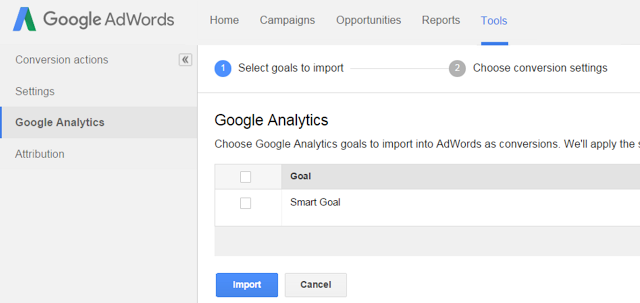
smart goals


Companies that might use Smart Goals are not all that unsophisticated


First, it really doesn't matter if the company that would use Smart Goals is a local brick-and-mortar storefront or an enterprise business. In my opinion, the data is not providing anything valuable to anyone.


However, AdWords talks it up as something that the small to medium-sized business can use, because, hey - if they're not using any tracking conversion at all, they might as well use some kind of data.


From the announcement (as linked to previously):


To generate Smart Goals, we apply machine learning across thousands of websites that use Google Analytics and have opted in to share anonymized conversion data. From this information, we can distill dozens of key factors that correlate with likelihood to convert: things like session duration, pages per session, location, device and browser. We can then apply these key factors to any website. The easiest way to think about Smart Goals is that they reflect your website visits that our model indicates are most likely to lead to conversions.


That's like saying to a lost traveler, "Since you don't have a GPS, I'm going to draw this map on a napkin, and I'm really not familiar with the area, but [shrug] it's better than not having any directions at all!"


While the positioning statement via Google (and some of the surrounding opinions I've heard) is geared towards advertisers who may not be as sophisticated as others, hence, they don't have conversion tracking - I bet if we looked a little closer, we'd see just who those advertisers might be.


For example, would you call a global multimillion-dollar brand that spends $30,ooo a month on AdWords an unsophisticated advertiser?


No?


Because those types of companies often don't have conversion tracking for one reason or another - usually because there are so many layers to getting updates on the site (let alone installing a tracking code) that it creates a roadblock to getting anything done.


Plus, there's also this interesting requirement to get Smart Goals going (from the Google announcement):


Note that your Google Analytics view must receive at least 1,000 clicks from AdWords over a 30-day period to ensure the validity of your data.


That's not really small potatoes. So you have to get 1,000 clicks from AdWords to validate unreliable data? Hmmm ...


To play devil's advocate, let's just pretend you run a small business and you advertise in search and you now have access to this Smart Goals feature.


And let's say you're the type of person who is focused on running a business - not your advertising - and aren't tracking conversions, probably don't have Google Analytics installed on your site, and if you do, never look at the thing.


So here comes this feature that again asks you to take some form of action with your tracking, and gives you data but doesn't give you the tools to optimize your AdWords account in a smart way so you're set up for real ROI.


Does this sound reasonable?


Smart goals + target CPA = more $ for Google


Okay, I said it. As PPC pros, we don't want to bite the hand that feeds us, but we look out for our clients first and foremost, and something stinks about this Smart Goals/target CPA pairing.


From the announcement, Google says:


One of the benefits of measuring conversions in your Adwords account is the ability to set a target cost per acquisition (CPA) as opposed to just setting a cost per click (CPC). If you aren't measuring actual conversions today, importing Smart Goals as conversions in Adwords allows you to set a target CPA. In this way, you're able to optimize your Adwords spend based on the likelihood of conversion as determined by our model.


Translation: let's get these advertisers on autopilot.


I'll venture to guess that Smart Goals + target CPA may be the new up-and-coming default setting AdWords will include on all those business accounts that are never touched beyond the initial set up. What do you think?


I shudder at the thought, but I wouldn't be surprised if businesses start getting cold calls from agencies that promise to 'optimize' their AdWords accounts on a monthly basis using Smart Goals for as little as $200 a month.


On a positive note ...


I said I would end on a positive note, and I do think it's interesting how Google created a workaround for conversion tracking using engagement factors. And I see how that can work.


Remember that example I gave of a multimillion-dollar brand not tracking conversions? I know this because of experience my agency has with this type of scenario.


And often in this situation, we'll optimize ad campaigns for engagement factors like time on site and pages per session.


Right about now, you're probably wondering why, if I do this type of conversion optimization around engagement factors, do I have such a problem with Smart Goals.


Here's one difference: My agency is a partner with our clients and actively manages the bids and their ad accounts based on metrics we're closely watching, taking into account their business and advertising goals, budgets and preferences.


One client that didn't have conversion tracking and that we were optimizing their campaigns for engagement metrics did see a 20% lift in their revenue coming from the PPC channel, so we know it works.


But, engagement metrics differ from business to business. As Julie pointed out in her article (linked to at the top of the page):


A very simple example here, if a site has calls as their conversion goal, their pages per session and session duration are often quite short. If you have a good landing page, calls happen fast and goals are achieved. Conversely, if you have a lead generation type of site, people often need to spend longer on your site and consume more page content before filling out your lead form.


As you can see, I'm simply not a fan of Smart Goals, and am less of a fan of what this might imply for countless businesses and their advertising.


But maybe I'm wrong... maybe it will help some companies - and I'd love to hear your take on it in the comments below.

How to Upload Photos from Adobe Lightroom to WordPress

Many photographers use Adobe Lightroom to edit photos before uploading them to WordPress. While editing photos is essential, manually uploading them to WordPress can be a time drain. In this article, we will show you how to easily upload photos from Adobe Lightroom to WordPress with just one click.


How to Upload Photos from Adobe Lightroom to WordPress


Requirements for Adobe Lightroom to WordPress Uploads


First you will need Adobe Lightroom installed in your computer. Any version after Lightroom 5 or Creative Suite would work.


Secondly, we will be using Envira Gallery, which is the best gallery plugin for WordPress. It allows you to create beautiful responsive image galleries in WordPress.


Envira Gallery recently announced the Lightroom Addon which is available with their Gold and Platinum license. This addon provides seamless integration between Adobe Lightroom and your WordPress site.


Let's take a look at how you can integrate Adobe Lightroom to WordPress.


Step 1. Setting Up Adobe Lightroom


First you will need to install and setup Adobe Creative Cloud app on your computer. Upon installation, creative cloud app will ask you to sign in with your Adobe ID. Once logged in, you need to make sure that file syncing is enabled.


Enable file syncing in Adobe creative cloud app


Next, you need to install the Envira Gallery addon for Adobe Lightroom. You can do this by visiting Addons for Adobe Lightroom page and searching for Envira Gallery.


Click on Envira Gallery to open the addon overview page, and then click on the Install/Free button to continue.


Installing Envira Gallery addon for Adobe Lightroom


After the installation, Adobe Creative Cloud app on your computer will show you a notification that Envira Gallery addon has been successfully installed.


The installation will also download envira-gallery.zip file to your computer. You need to go to your computer's Downloads folder to locate the file and extract it.


In your computer's downloads folder, you should now see a file enviralrplugin.zip. You need to extract this file because it contains a file named envira.lrplugin.


Next, you need to open Adobe Lightroom and click on File >> Plugin Manager in the toolbar.


Plugin manager menu in Adobe Lightroom


This will bring up the plugin manager window. Go ahead and click on the Add button and select the envira.lrplugin file from your computer.


Add Envira Gallery plugin in Adobe Lightroom


Click 'Done' to close the plugin manager window. You should now see Envira Gallery in Adobe Lightroom under Publish Services.


You have successfully added Envira Gallery as a publish service to Adobe Lightroom. Now we need to setup Envira Gallery to work with Lightroom.


Step 2: Setting up Envira Gallery plugin


Envira Gallery is a premium WordPress plugin. Envira's Adobe Lightroom addon comes with their Gold and Platinum plans.


First thing you will need to do is install and activate the Envira Gallery plugin. For more details, see our step by step guide on how to install a WordPress plugin.


Upon activation, you need to go to Envira Gallery >> Settings page. You will need to provide your license key which can be found in your accounts page on Envira Gallery website.


Envira Gallery settings page


After verifying your license key, you need to click on the Addons tab and scroll down to locate the Lightroom Addon. Go ahead and click on the Install Addon button.


Envira Gallery will install the Lightroom addon, and then you need to click on the activate button to enable it.


Installing lightroom addon in Envira Gallery plugin


You will need to reload the settings page, and you will now see a new tab labeled Lightroom. Clicking on the Lightroom tab will show you two options.


Lightroom settings in Envira Gallery plugin


First, you need to choose the user account you want to use for publishing images from Lightroom. Second, you need to generate an access token. Copy this access token as you will need it in the next step.


Don't forget to click on the Save button to store your settings.


Step 3: Connect Lightroom to Envira Gallery on Your WordPress Site


Now that we have setup both Envira Gallery and Lightroom, the next step is to allow Lightroom to speak with Envira Gallery on your WordPress site.


Open Adobe Lightroom and click on the 'Setup' link next to Envira Gallery under publish services panel.


Setup Envira Gallery as publish service


This will bring up the publishing services manager window. You will need to provide the address of your WordPress website and the access token you generated earlier.


Connecting Lightroom to Envira Gallery plugin on your WordPress site


Once you do that, click on the authenticate button. Lightroom will now connect to your WordPress site, and you will see a success message when it has connected to your website successfully.


Successful authentication


Click OK button on the success message and then click on the Save button in publishing services manager window.


Step 4: Uploading Photos From Lightroom to WordPress


All the steps mentioned above were just for setting up Lightroom and Envira Gallery. You will not need to repeat those steps in the future.


Now you can easily upload photos from Adobe Lightroom to WordPress with Envira Gallery.


Start by going into Adobe Lightroom and then right clicking on Envira under the Publish Services panel. After that click on the 'Create Published Collection...' option from the menu.


Create new collection


This will bring up a popup window where you need to provide a name for your collection. It is important to note that this name will also become the name of your image gallery in your WordPress site.


Collection name


Once you have chosen the name, click on the create button to continue. Lightroom will now create an empty collection for you. You can drag and drop images from your library into your new collection.


As soon as you add, remove, or edit images in a collection, you will see a Publish button appear below it. Clicking on publish button will upload your photos to WordPress and store them in your Envira Gallery.


Publish from Lightroom to Envira Gallery


You can continue editing your images in Lightroom, make changes, add or remove images, and do anything you want. You can always click on the publish button and your Envira Gallery will get updated because this addon keeps Lightroom synchronized with WordPress.


You can visit your WordPress admin area and go to Envira Gallery to see your Lightroom collection added as a gallery.


New gallery created from Lightroom


This gallery will still be stored as a draft. In order to add it into your posts or pages, you will need to publish it. Take a look at our guide on how to create image galleries with Envira Gallery


Publish Envira Gallery to add it into posts or pages


That's all. We hope this article helped you learn how to upload photos from Adobe Lightroom to WordPress. You may also want to see our guide on how to resize and make images larger without losing quality.


If you liked this article, then please subscribe to our YouTube Channel for WordPress video tutorials. You can also find us on Twitter and Facebook.


The post How to Upload Photos from Adobe Lightroom to WordPress appeared first on WPBeginner.